Discover how to install and configure a Jellyfin media server on Ubuntu 22.04.5 LTS to share your music with friends or stream it over a local network or the internet.
While Kodi and Plex are often the first names that come to mind for media server solutions, they are not the only options available. Jellyfin is a notable open-source alternative that allows users to quickly establish a modern media server featuring an interactive web interface for managing videos, images, and music across various devices.
With Jellyfin, you can access your media content on multiple platforms, including computers, Roku apps, Android, iOS (with AirPlay support), Android TV, Fire TV, and even through Chromecast or existing Kodi setups. Additionally, the Jellyfin server can be installed not only on Linux but also on systems running Microsoft Windows, macOS, or within a Docker container.
1: Add GPG Key
Before adding the Jellyfin repository add its public GPG key used to sign the packages of Jellyfin and will confirm we are getting them to install on our system from the authentic source.
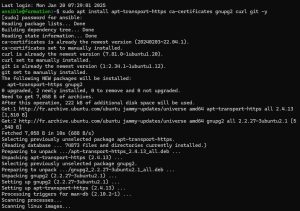
To get packages via a secure protocol, first, enable its support using the below command:
sudo apt install apt-transport-https ca-certificates gnupg2 curl git -y
Add key:
curl -fsSL https://repo.jellyfin.org/ubuntu/jellyfin_team.gpg.key | sudo gpg --dearmor -o /etc/apt/trusted.gpg.d/jellyfin.gpg
2: Incorporate the Jellyfin Repository
Next, we will incorporate the Jellyfin repository based on the Debian or Ubuntu-based Linux distribution you are utilizing. This can be accomplished with a single command, so please ensure to copy and paste it in its entirety.
echo "deb [arch=$( dpkg --print-architecture )] https://repo.jellyfin.org/$( awk -F'=' '/^ID=/{ print $NF }' /etc/os-release ) $( awk -F'=' '/^VERSION_CODENAME=/{ print $NF }' /etc/os-release ) main" | sudo tee /etc/apt/sources.list.d/jellyfin.list
3: Update Ubuntu 22.04
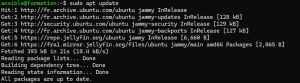
Rebuild the system’s repo cache, so that it could recognize the added repo and its corresponding packages to install on our system to set up the Jellyfin media server.
sudo apt update
4: Install Jellyfin on Ubuntu 22.04
Finally, run the below command to automatically install Jellyfin on your Debian or Ubuntu-based Linux operating system you are using,
sudo apt install jellyfin
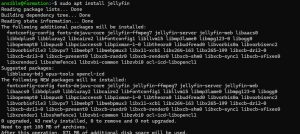
5. Activate and Initiate the Jellyfin Server
After the installation is finished, we will proceed to start the Jellyfin Media server service on Ubuntu 22.04 and enable it to ensure that it launches automatically during system boot.
sudo systemctl enable jellyfin

sudo systemctl start jellyfin
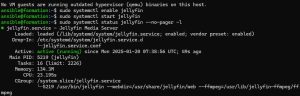
You can also check whether everything is running properly or not by using :
sudo systemctl status jellyfin --no-pager -l6. Allow media server through a firewall
The default port used by the Jellyfin media server is 8096 and if you are using some firewall such as UFW or those who are using cloud hosting to run Ubuntu 22.04, open this in their firewall.
If you are using an active UFW firewall then use the given command:
sudo ufw allow 80967: Configure Jellyfin media server
As everything is in position, our open-source media server is up and running, thus it is time to let’s access the Jellyfin web interface using the browser. If you are using a command-line server to set it up, then use some other local machine available to access the remote server where you have installed the Jellyfin.
In the browser, type the IP address of the server where Jellyfin has been installed along with port number 8096. Whereas if you are using the Jellyfin installed server in GUI with browser access then we can use localhost or 127.0.0.1.
Example:
127.0.0.1:8096
Or
your-ip-address:8096
Note: Replace the IP address with your server address.
You will get the welcome screen to set up Jellyfin further.
8: Set Username and Password
Click on the Next button to start the Jellyfin media server setup. The next screen will appear for setting up the username and password for Admin and will have all the access to add/remove content and other settings.
9: Add Library
Click on the + button, first select the category type, for media content files such as music, videos, and images, and then type the path of the folder where you have to save the media you want to play on Jellyfin. For example, I selected the Music category and then entered the path of the folder where I have saved my music files.
You can add multiple folders to your library right here or after whenever you want.
In case you want to use a smartphone and other devices to remotely connect Jellyfin using the internet then enable the “Allow remote connections to this Jellyfin Server” option. However, to access the server residing behind a local router and using a local IP address, to access it via the internet, the user has to forward its Jellyfin port manually.
10: Log in to Jellyfin Server
Enter the username and password to log in, and then you will have the Interface of Jellyfin in your browser to access the music, videos, and other media files.
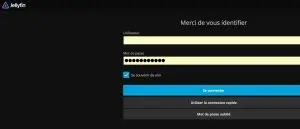
In case you want to add some more Library or media folders in Jellyfin, then go to Dashboard, select libraries, and then “Add Media library”.
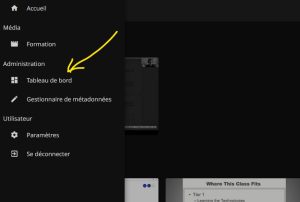
Options to restart and shut down the server are also present under Dashboard.
11. How to Update/Upgrade
As we have used the official JellyFin repository to install it, we can use the system update and upgrade command to get the latest available updates.
sudo apt update && sudo apt upgrade12. Uninstall Jellyfin Media Server
Those who are not interested in this open-source media server and want to completely remove it from their Ubuntu 22.04, can go for the given commands.
sudo autoremove install jellyfin --purgeTo remove the repository as well.
sudo rm /etc/apt/sources.list.d/jellyfin.listJellyFin Clients
This open-source media server supports multiple client applications to stream music and videos from the server. Thus, for the same, we can download Jellyfin Client as per our devices such as Firestick, Android TV, iPhone, Kodi, Roku, and more…